During one of my presentations at Acumatica Summit 2017, entitled Business Intelligence for Business Leaders, I showed an example of a Dashboard in Acumatica 6.
Click here for the slides and other information from that presentation.
In this post I’d like to walk through how the dashboard was built. This will require that we first create generic inquiries because generic inquiries are like the hub of a wheel (click here) and are needed for most of the Widgets that you put on a Dashboard. Then we’ll walk through adding Widgets to our Dashboard.
Note: I’ve covered Acumatica Dashboards before in this post so you might want to also check that out.
Overview
Before we dive in, let’s first take a look at the Dashboard that we want to create.
Dashboards in Acumatica are made up of Widgets.
There are 7 different Dashboard Widgets available in Acumatica 6:
- Chart
- Data Table
- Embedded Page
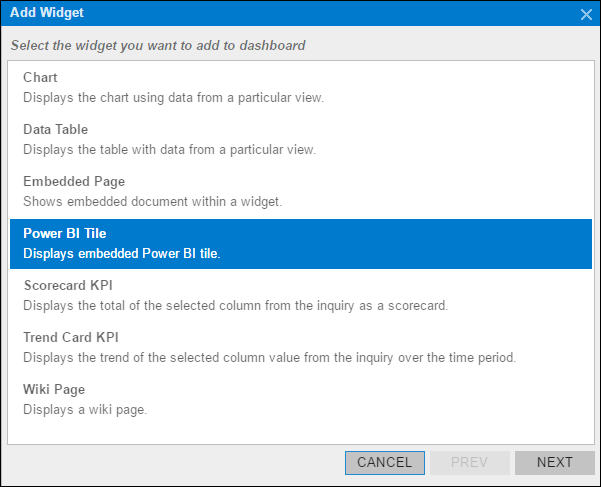
- Power BI Tile
- Scorecard KPI
- Trend Card KPI
- Wiki Page
The first widget in our dashboard is a Scorecard KPI widget and the second is a Trend Card KPI widget. They both respond to the business date so here are two different screenshots that show different results depending on the business date.
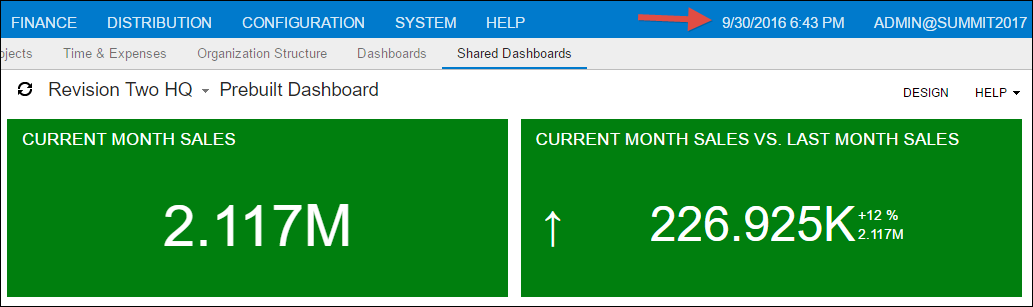
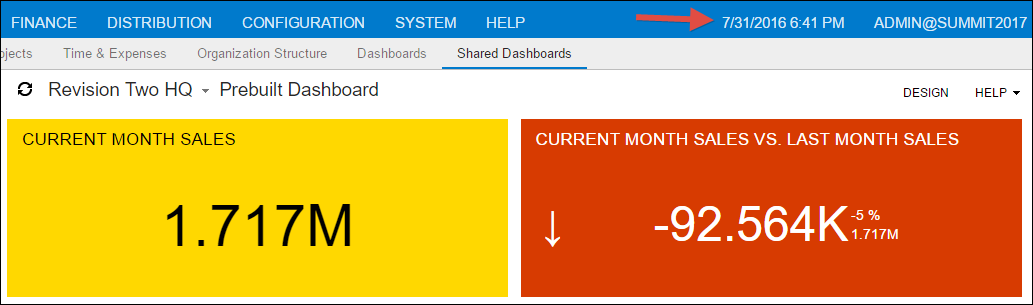
Next we have two Chart widgets. There are 7 different kinds of charts: Doughnut, Line, Column, Stacked Column, Bar, Stacked Bar, and Funnel.
Personally, I’m a fan of the Bar chart more than the Doughnut (or Pie) chart because it’s much easier for me to see which pieces are bigger and by how much. So, the next two Chart widgets are both Bar charts.
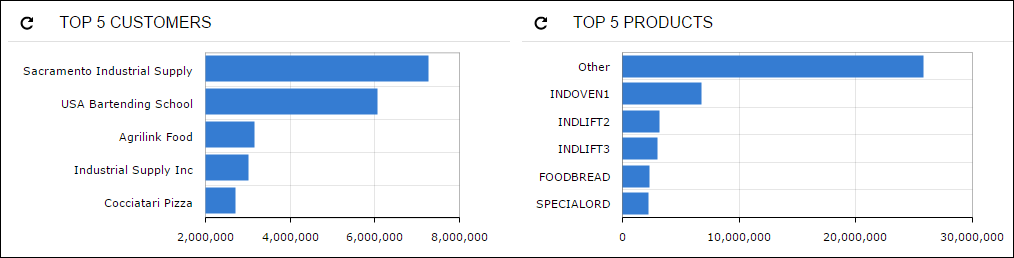
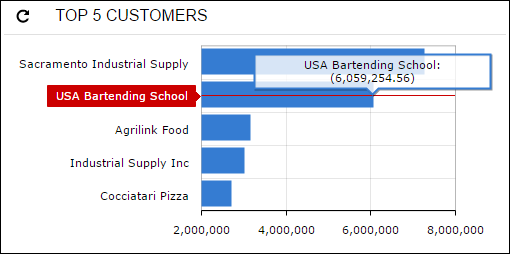
And don’t forget that you can drill into Bar charts by either clicking the title (eg. TOP 5 CUSTOMERS or TOP 5 PRODUCTS) or by hovering over one of the bars like in the screenshot below and clicking. In both cases you will be taken to the underlying generic inquiry, but in the case of clicking an individual bar, the generic inquiry will automatically be filtered based on the bar that you clicked on.
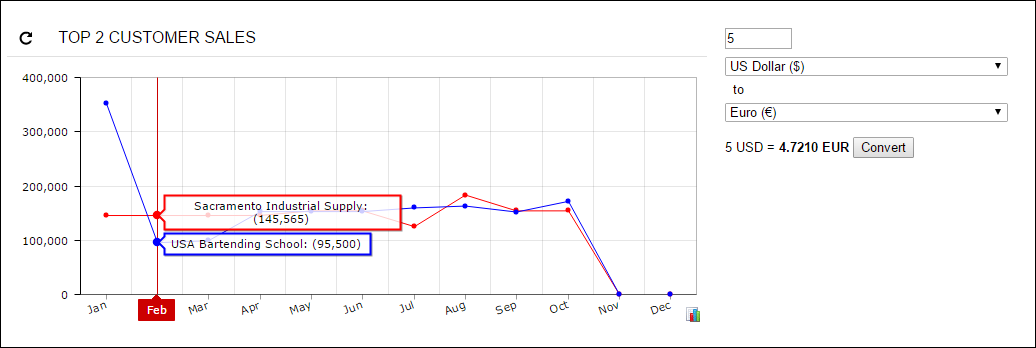
Next we have another Chart widget (this time a Line chart) and an Embedded Page widget. The Line Chart widget is showing the top two customers so it’s not two crowded. I really like the Embedded Page widget because there are lots of possibilities. On the one hand, it’s just a webpage within a webpage. On the other hand, you can get very creative with it. The example below is showing the Google Currency Converter on the Acumatica dashboard.
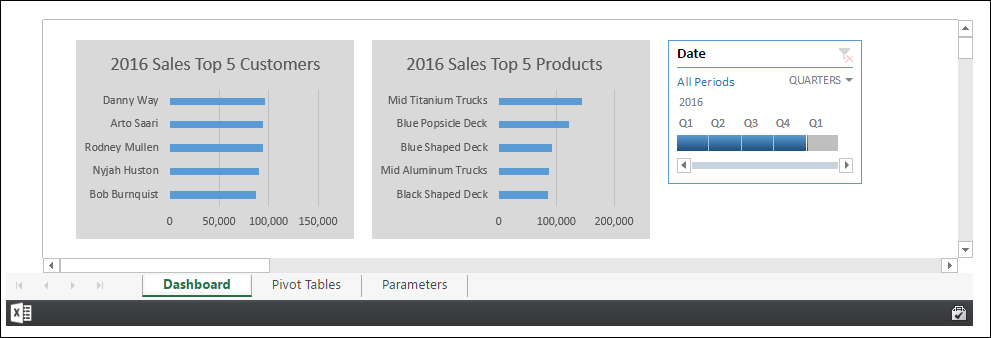
Here is another Embedded Page widget, but this time we’re looking at an Excel Online file. So, you can design a dashboard in Excel, then display it with Excel Online within an Acumatica dashboard using a secret URL trick (click here). You almost don’t even recognize that it’s Excel, except for the little Excel icon in the lower left-hand corner. I’ll show you how to build this Excel file example in a later post.
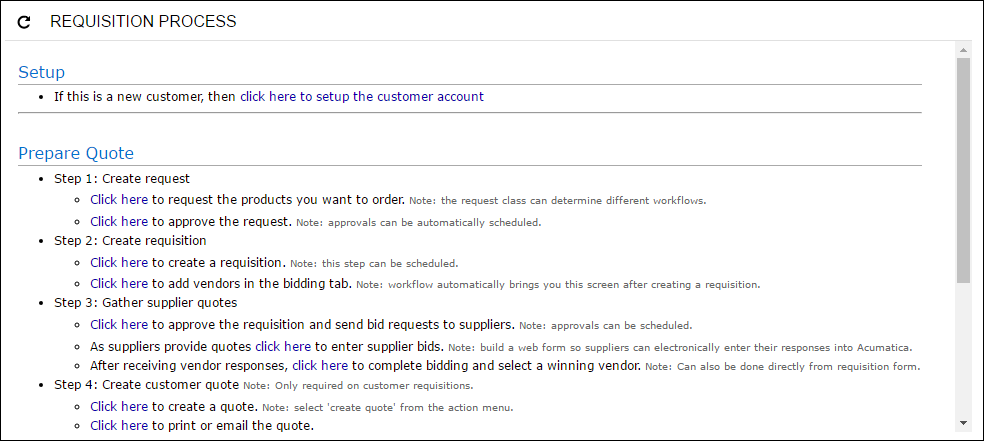
Next we have a Wiki Page widget. Wiki pages are great for documenting business process flows, like the example in this screenshot here.
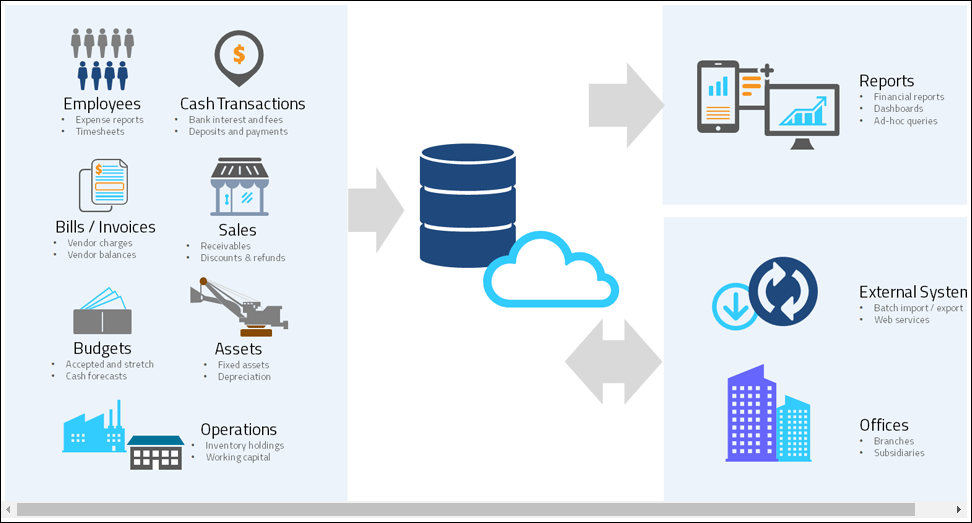
Another Wiki Page widget here, this time it’s an image that uses clickable regions with HTML code using a technique that Doug Johnson blogged about a while back (click here).
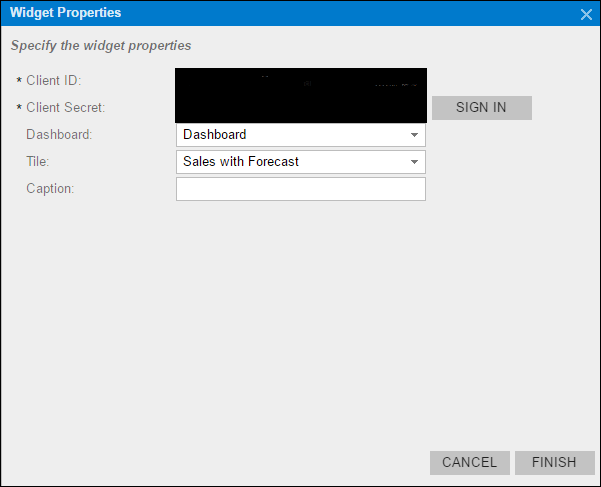
And last, but certainly not least (you might even say that I saved the best for last), here are two Power BI Tile widgets that I added using the technique from an earlier blog post (click here).
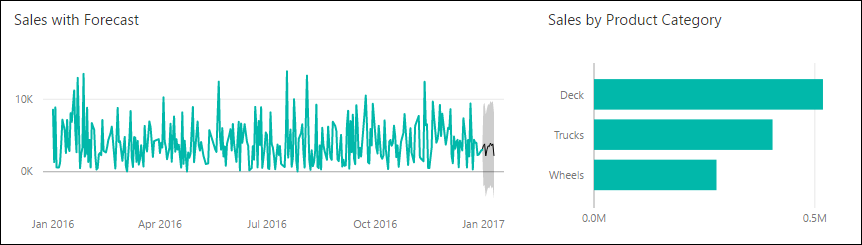
Alright, now that we have an idea of what we want to create, let’s get into how to create this Dashboard with each of the widgets.
Brace yourself for a lot of screenshots.
Step 1: Building the Generic Inquiries
Most of the Acumatica Dashboard Widgets (five out of seven) are built on top of Generic Inquiries. So we really need to build some Generic Inquiries before we get into building Dashboard Widgets.
We are going to build four Generic Inquiries.
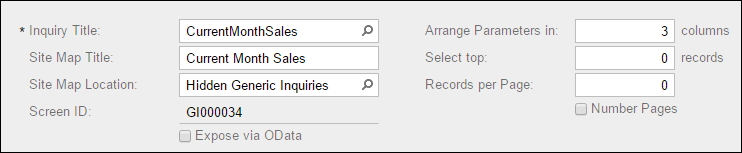
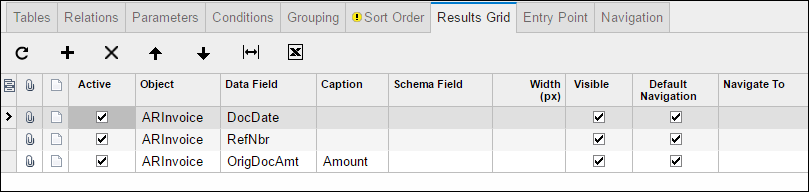
1. CurrentMonthSales
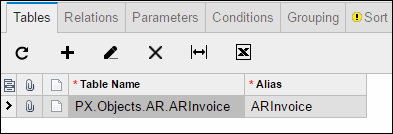
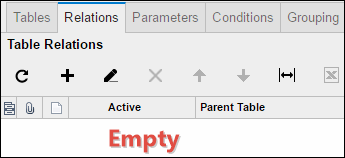
First, let’s build a Generic Inquiry called CurrentMonthSales which will be used by our Scorecard KPI widget. In order to build this generic inquiry, I populated the following data in the Generic Inquiry screen in Acumatica.
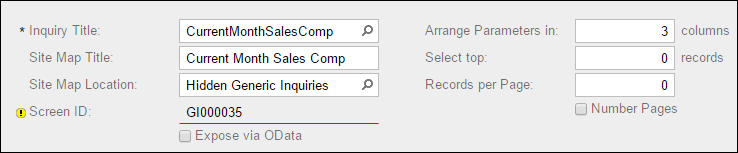
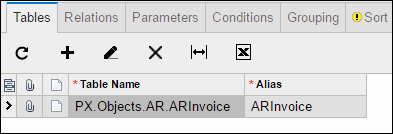
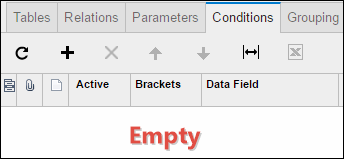
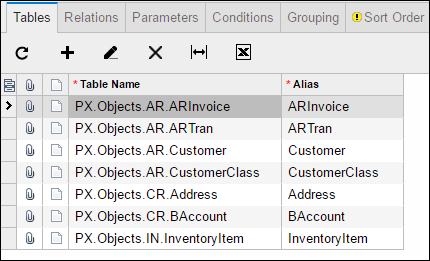
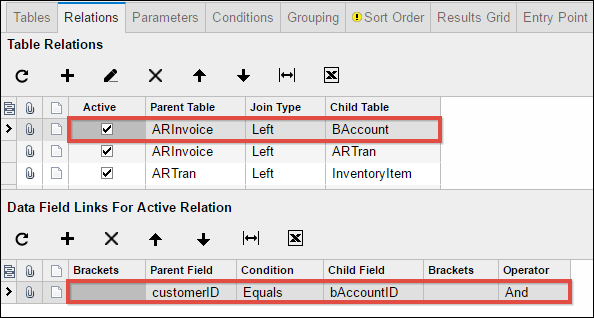
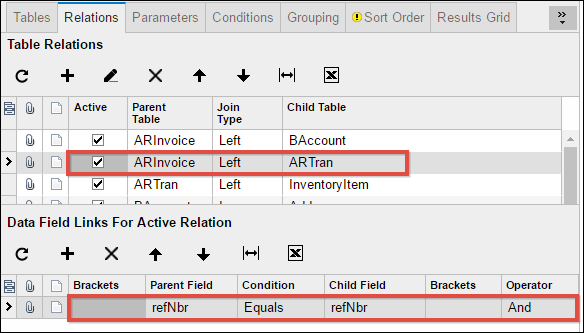
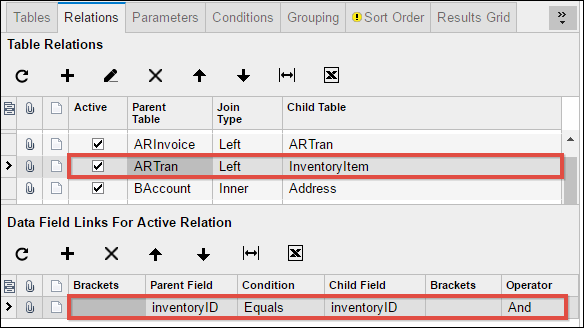
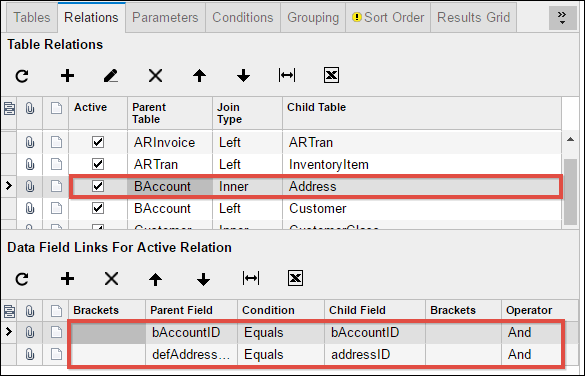
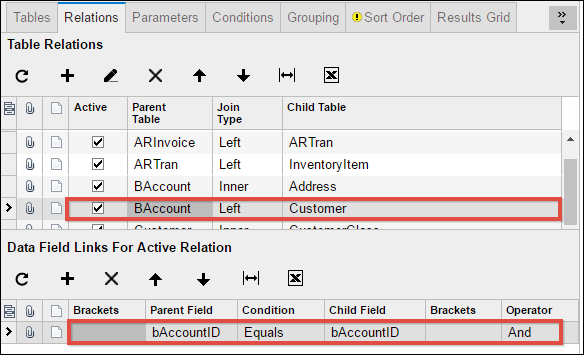
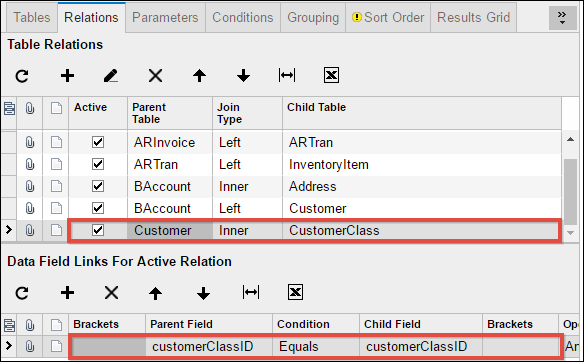
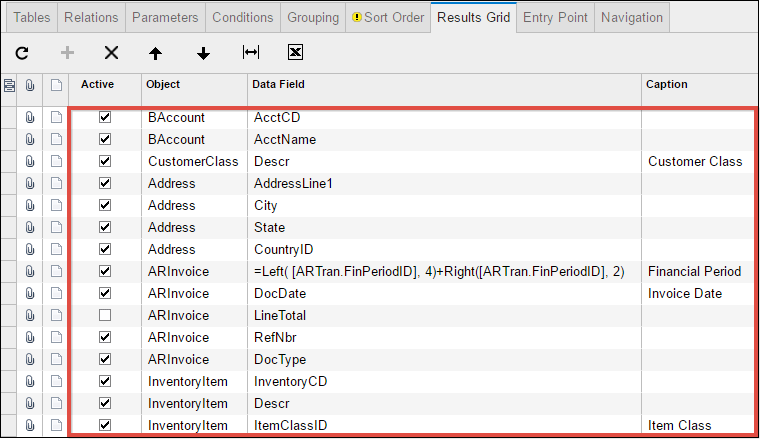
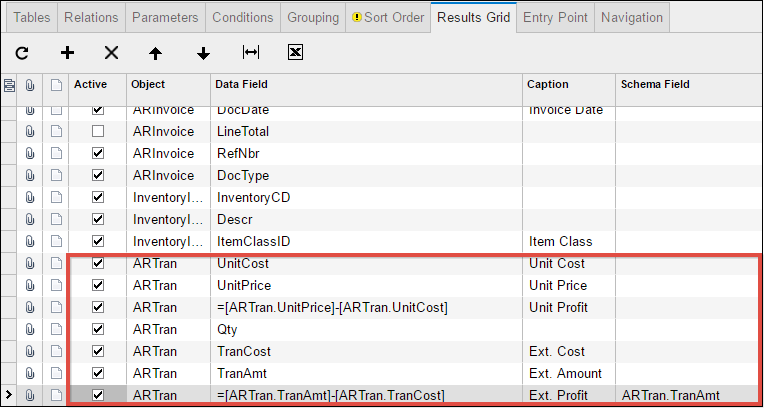
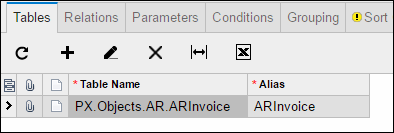
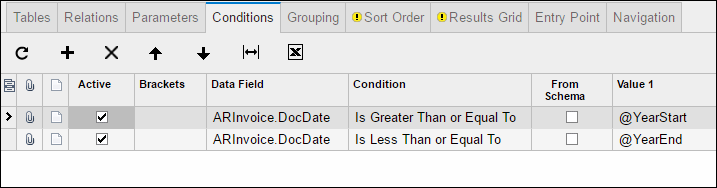
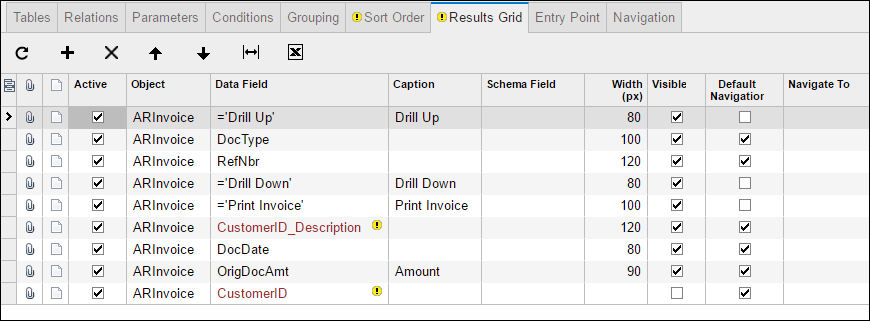
Each screenshot is showing you the data on each tab. There are multiple screenshots for the Relations tab on some of the generic inquiries because the bottom section changes depending on which row you have highlighted in the top section.
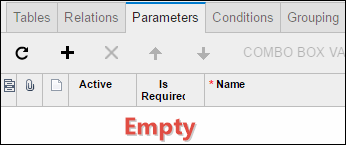
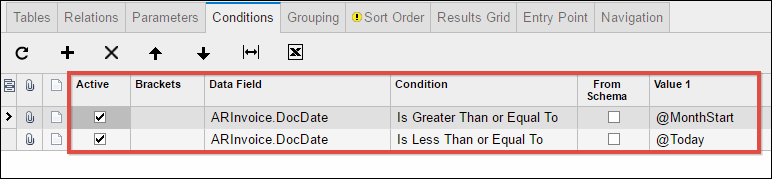
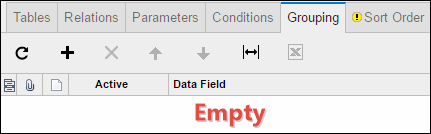
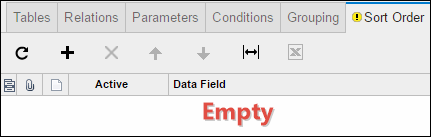
2. CurrentMonthSalesComp
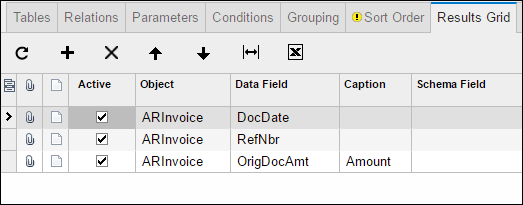
Second, let’s build a Generic Inquiry called CurrentMonthSalesComp which will be used by our Trend Card KPI widget.
3. Invoiced Items
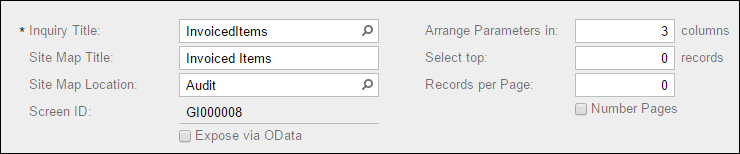
Third, let’s build a Generic Inquiry called Invoiced Items which will be used by our two Bar Chart widgets. This Generic Inquiry is actually already available in the SalesDemo company, but I’m going to show how to build it here anyways.
4. InvoicesDashboard
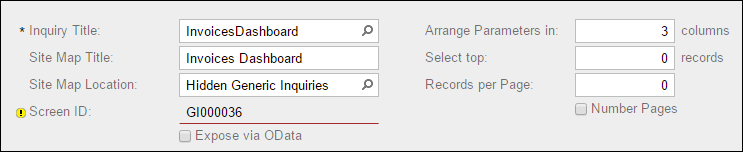
Fourth, let’s build a Generic Inquiry called InvoicesDashboard which will be used by our Line Chart widget.
Step 2: Creating the Scorecard KPI Widget
Now that we have built our Generic Inquiries, we are ready to build our dashboard widgets based on those Generic Inquiries.
I’m starting with an empty Dashboard and adding to it.
The first thing that we need to do is click the DESIGN button. Then we can click the add a new widget hyperlink.

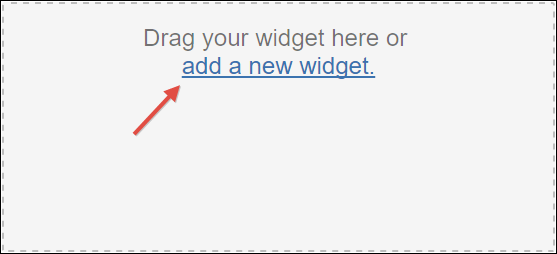
From here, we can then add our Scorecard KPI widget. Make sure to choose the Current Month Sales generic inquiry that you created earlier in this post.
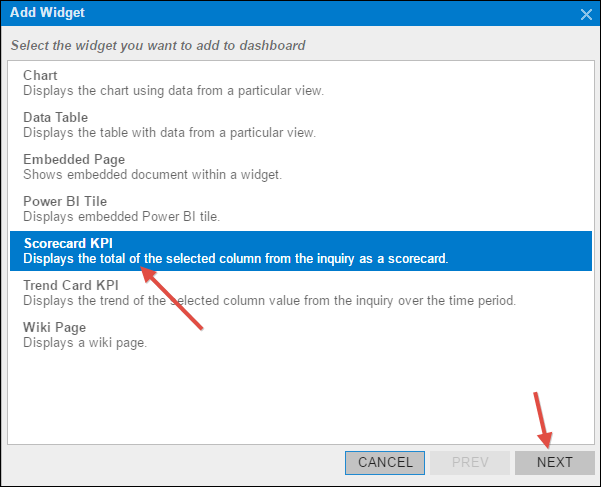
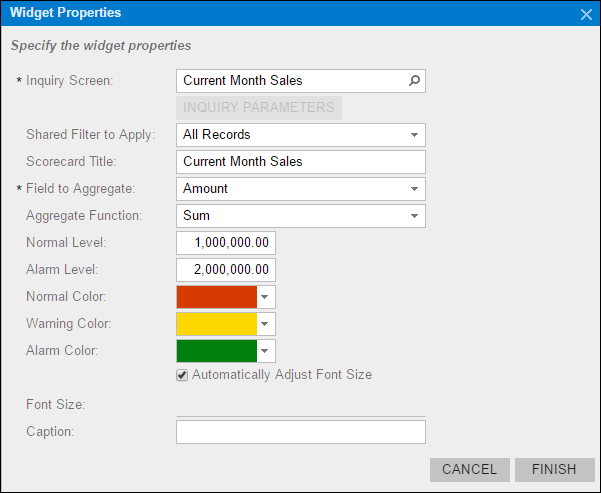
Step 3: Creating the Trend Card KPI Widget
Next let’s create our Trend Card KPI widget which will also be based on the Current Month Sales generic inquiry that we created earlier in this post.
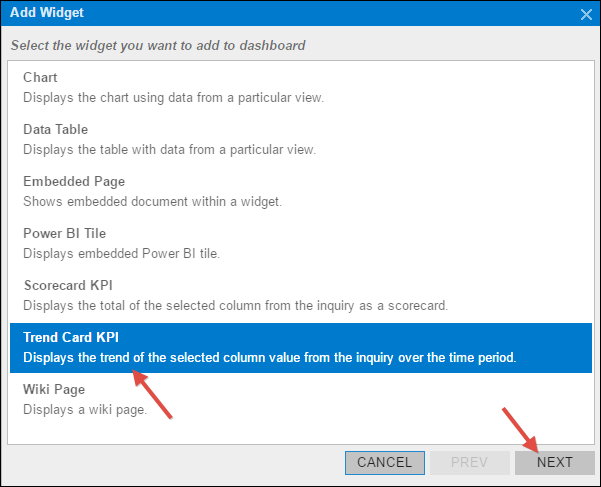
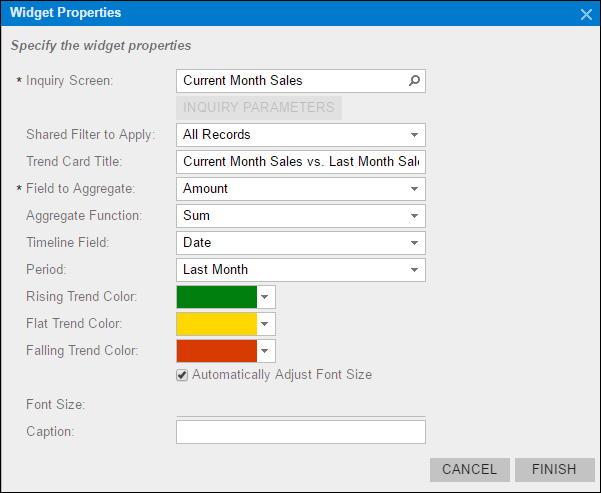
Step 4: Creating the first Bar Chart Widget
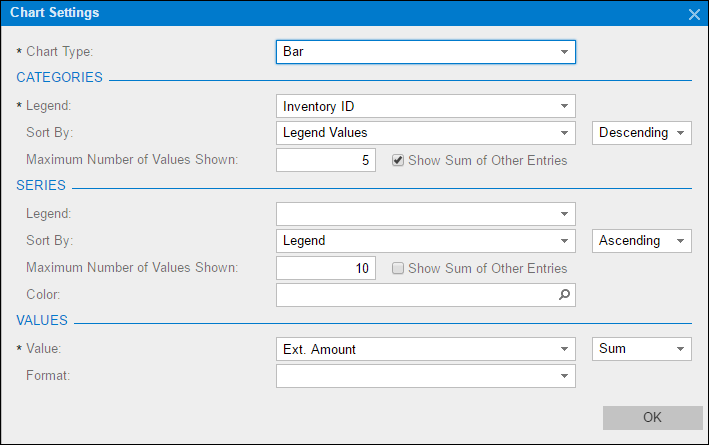
Now let’s create our first Bar Chart Widget (there will be a second) using the Invoiced Items generic inquiry.
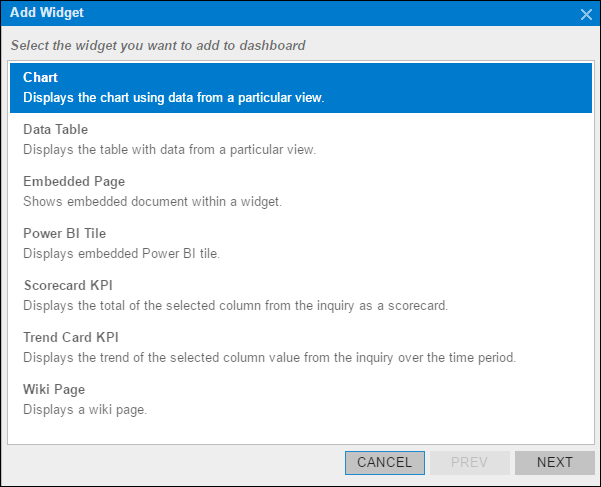
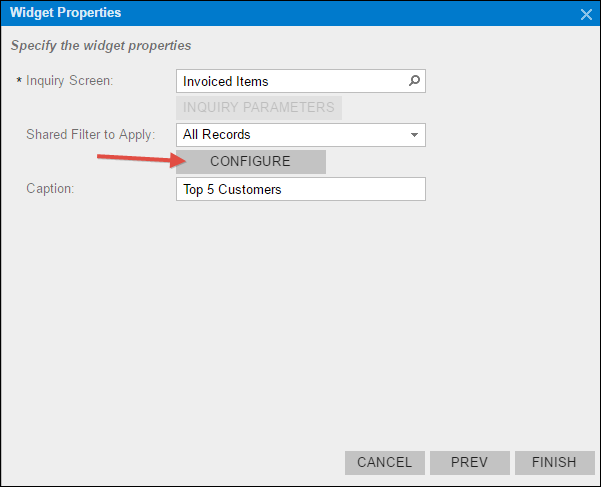
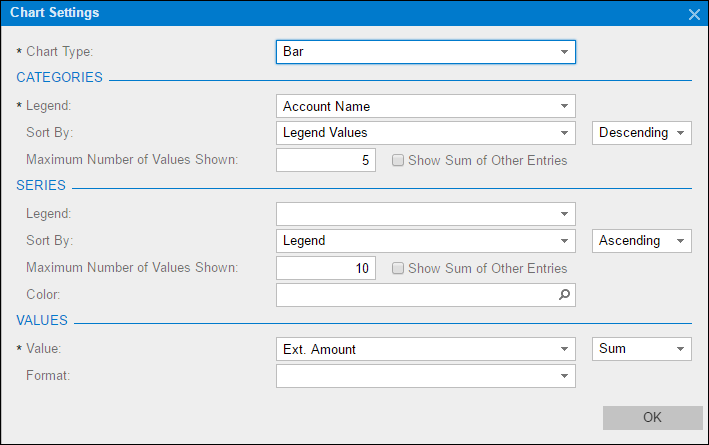
Step 5: Creating the second Bar Chart Widget
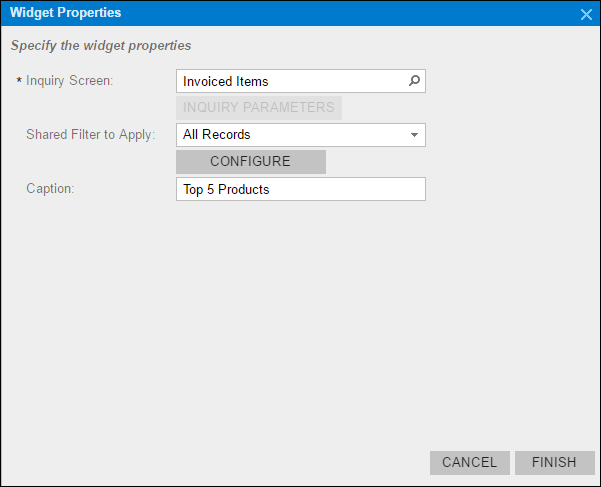
This is basically the same as the previous widget except that we are checking the Show Sum of Other Entries box in the last screenshot to demonstrate the widget’s ability to display the extra “everything else” bucket.
Step 6: Creating the Line Chart Widget
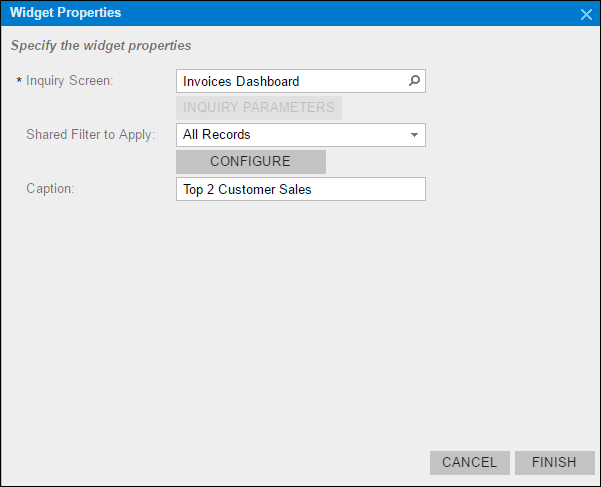
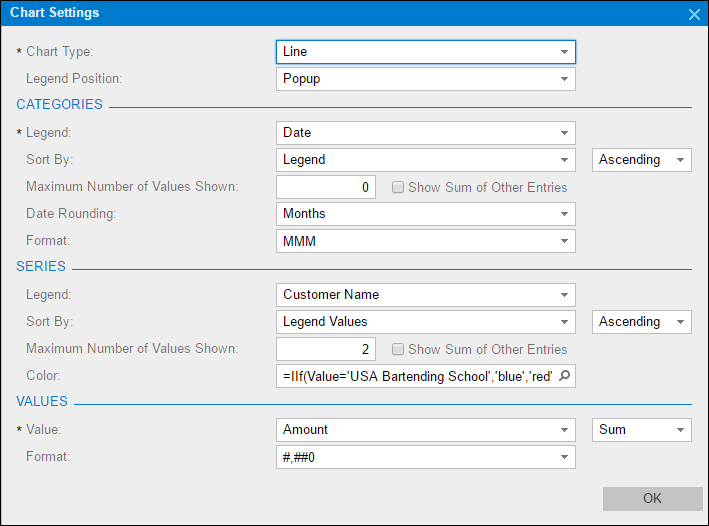
This time we’re creating a Line Chart widget and only showing the top two customers. Otherwise the chart would get really crowded.
The formula in the Color field in the last screenshot reads:
=IIf(Value=’USA Bartending School’,’blue’,’red’)
Step 7: Creating the first Embedded Page Widget
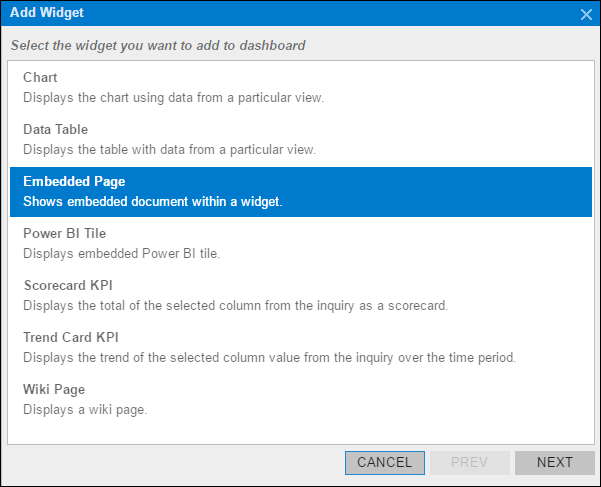
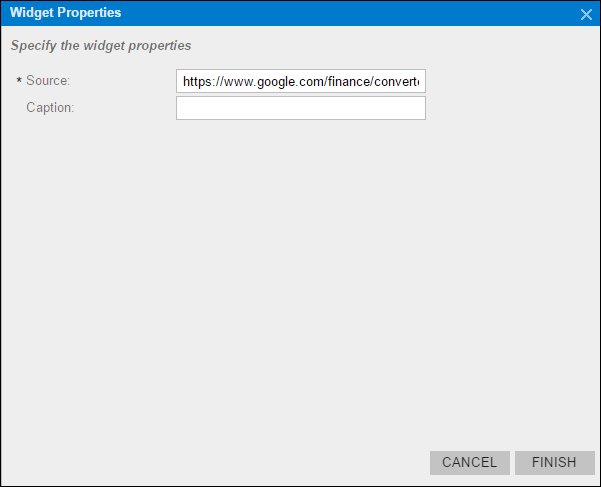
Super simple here, but very powerful. All we are doing is displaying the Google currency converter inside a dashboard, but the result is pretty cool.
The url in the Source field in the last screenshot reads:
https://www.google.com/finance/converter?from=USD&to=EUR
Step 8: Creating the second Embedded Page Widget
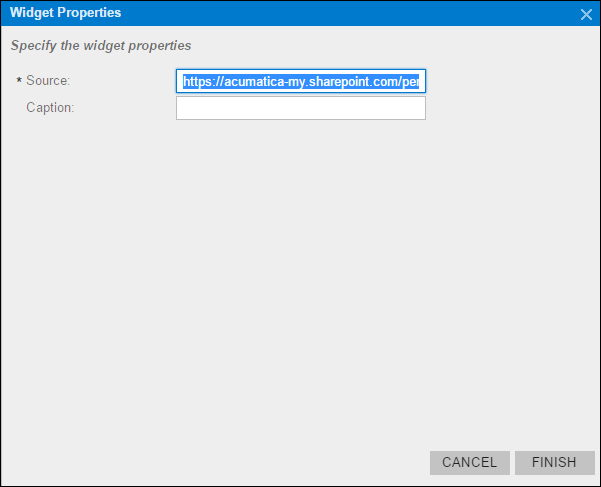
This is my favorite example of an Embedded Page Widget. This is an Excel file being displayed inside an Acumatica Dashboard.
This utilizes the technique outlined in this blog post:
http://www.augforums.com/excel-online-web-app-and-acumatica/
You can use the following url in the Source field in the last screenshot:
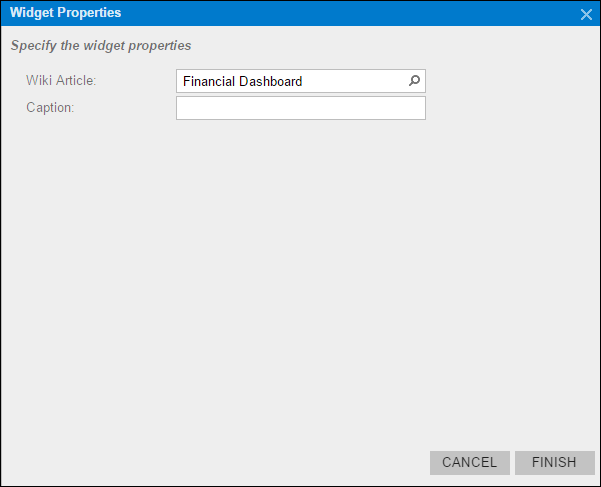
Step 9: Creating the first Wiki Widget
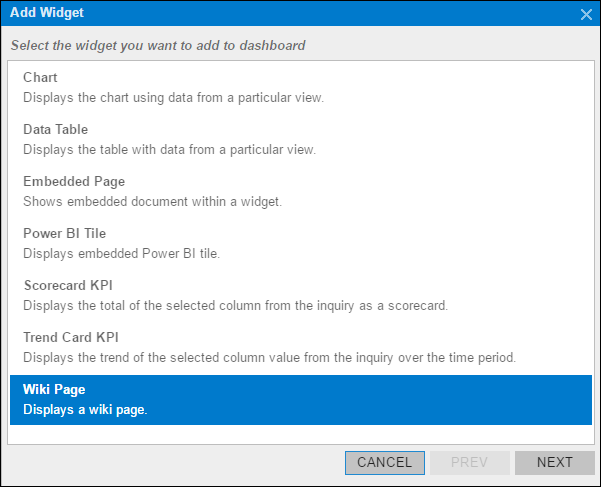
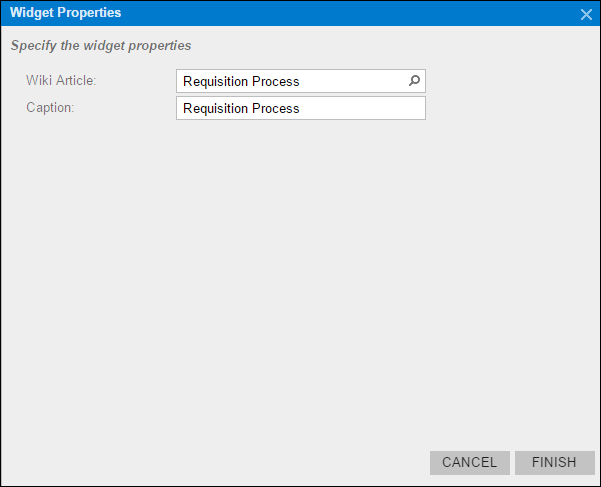
Next we have two Wiki Widgets. First the one with lots of text. This utilizes one of the Wikis that is available in the SalesDemo company.
Step 10: Creating the second Wiki Widget
Now for the pretty one with pictures, also available in the SalesDemo company.
Step 11: Creating the Power BI Tile Widgets
You won’t be able to reproduce these because I blacked out my secret keys in the second screenshot.
But I’m just using the method outlined in this blog post:
http://www.augforums.com/power-bi-tile-dashboard-widget-in-acumatica-6/
In Conclusion
I probably should have done a video 🙂
It takes a lot longer to do, but I like doing the screenshots because it makes it easier for me to reference quickly later.
Hi Tim,
Great post as always. We have played around with the Wiki Image widgets that use image mapping. The problem we encounter is scaling the image mapping to the size of the image depending on a users screen.
To the best of my knowledge, Acumatica doesn’t support this. Any thoughts?
Ehren
Hey Ehren,
You’re ahead of me on this, but, as far as I know, I think you are correct.
I’m not sure how it would go about scaling the image, but it would be interesting to see how it appears on the new mobile dashboards.