— The Forums are now read-only —
— All new activity now takes place here: —

What if you want to track changes that were made to a Purchase Order in Acumatica?
Specifically, let’s say that you want to track the following on a Purchase Order Line:
- When a line is added.
- When line is removed.
- When the Inventory ID is changed.
- When the Unit Cost is changed.
- When the Order Qty. is changed.
- Who made a change and when?
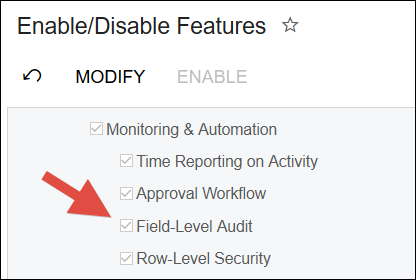
First, make sure that you have Field-Level Audit enabled on the Enable/Disable Features (CS100000) screen:
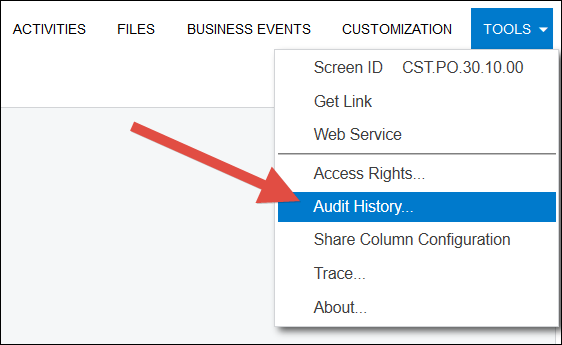
Next, on the Purchase Orders (PO301000) screen, go to TOOLS -> Audit History…
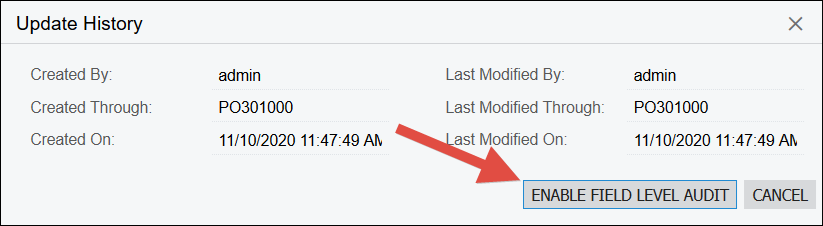
Then click ENABLE FIELD LEVEL AUDIT on this pop-up window:
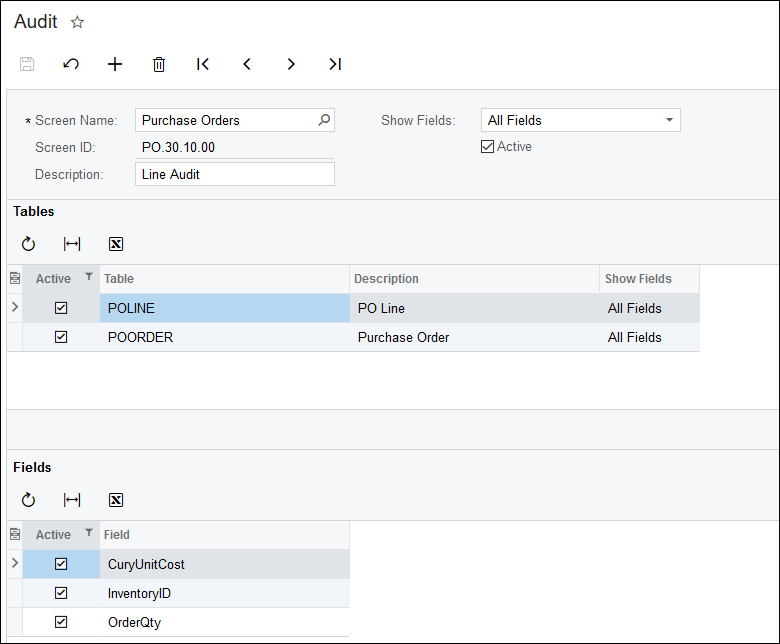
Only check off the fields that you want to audit. You don’t want too many fields checked off or it can slow down the screen. It’s A LOT of clicking to uncheck the Active checkbox for all of the fields, so I use SPACEBAR -> DOWN ARROW -> SPACEBAR -> DOWN ARROW over and over again. It’s still really tedious, but it’s faster than using the mouse. You can filter on the Active column for True to show only the fields you have enabled for field-level audit to make sure that you didn’t miss anything that should be unchecked.
For some reason, in the environment that I tried this in (Acumatica 2020 R2 - 20.202.0043), I had to make a field Active in the Header of the Purchase Order in order for Acumatica to track changes to the Lines of the Purchase Order. So I made the Description field active as my “token” Header field.
Here are some screenshots of my Audit (SM205510) screen. Note that I’m filtered on Active=True to only show fields that are enabled for field-level auditing:

Now let’s see how our field-level audit setup behaves on the Purchase Orders (PO301000) screen. Let’s use this Purchase Order as an example.
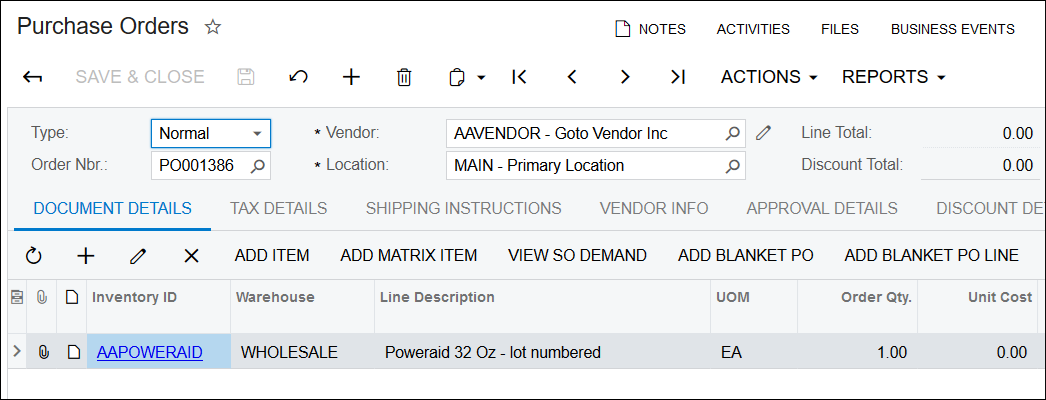
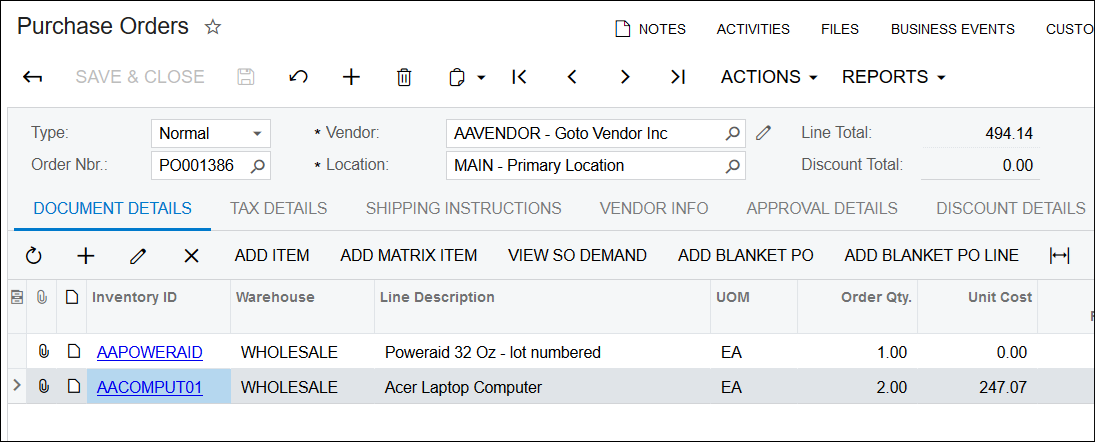
Does it track when a line is added? Let’s add a second line to the Purchase Order and then go to TOOLS -> Audit History… again. This time, rather than taking us to the Audit (SM205510) screen, it takes us to the Audit History screen (since we already have things setup) to show us the changes that are being tracked. Since this is a new line, all it tracks is a green record which means that something was added.
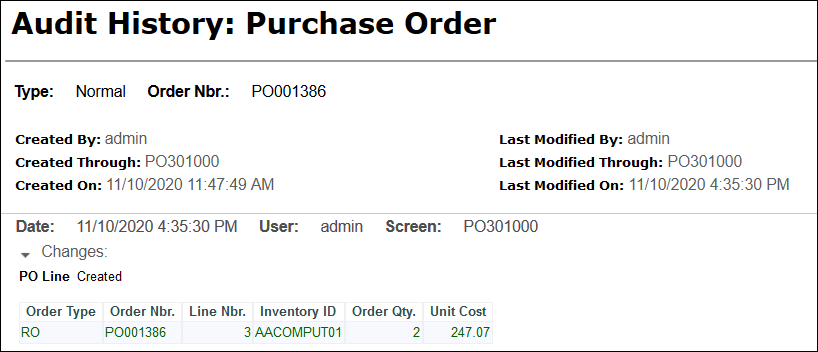
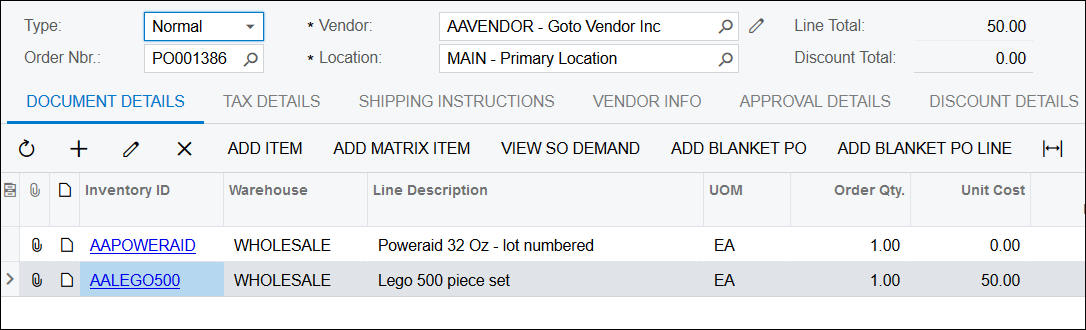
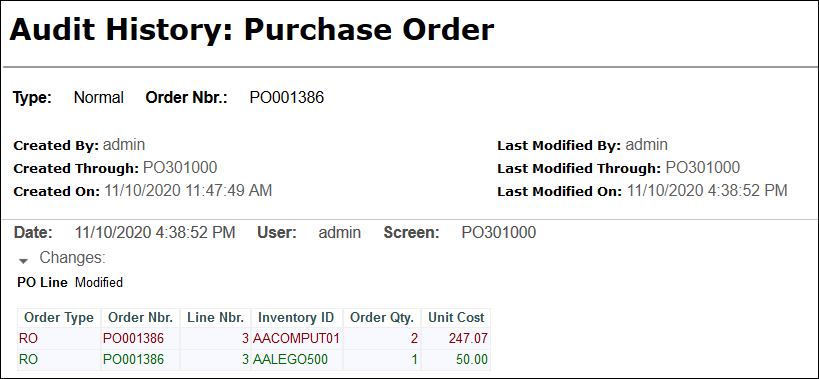
Does it track when the Inventory ID, Unit Cost, or Order Qty. are changed? Let’s change the Inventory ID on the Purchase Order, enter an Order Qty. of 1, and a Unit Cost of 50, then go to TOOLS -> Audit History… again. This time the audit history tracks two lines: the red line shows the old values on the line and the green line shows the new values on the line.
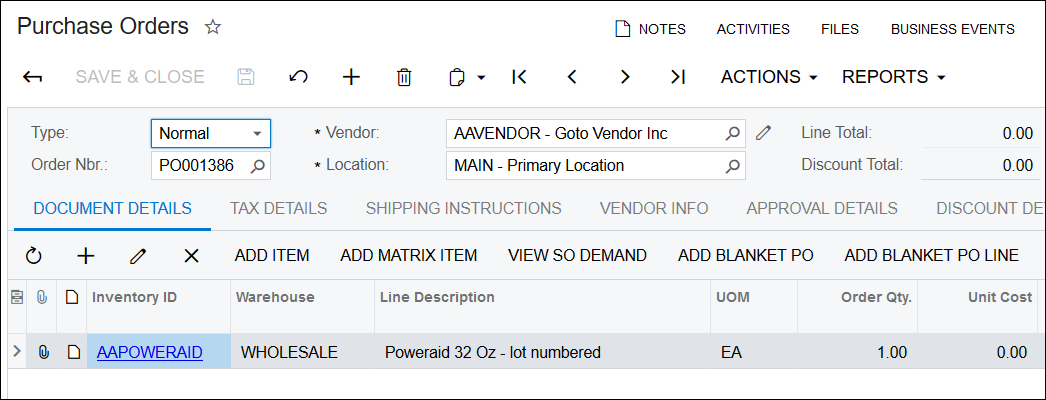
Does it track when a line is removed? Let’s delete the line we just added, then go to TOOLS -> Audit History… again. This time, all it tracks is a red record (rather than the green record that we got when we added the line). This is how we know that the line was deleted.
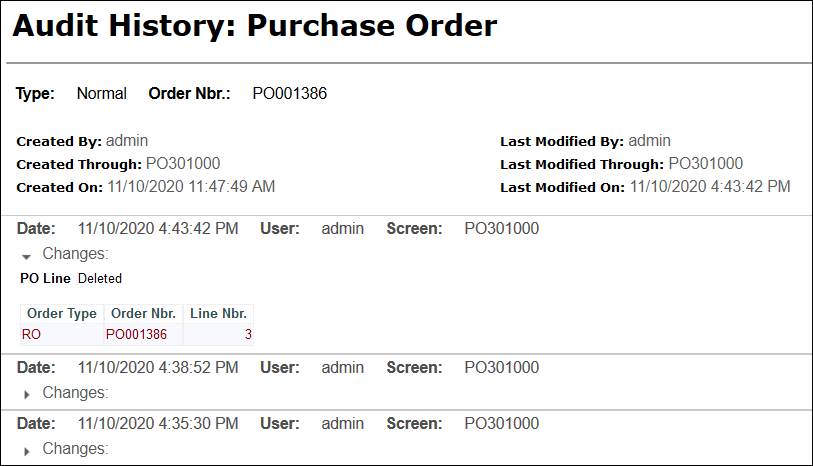
Note in the previous screenshot that the Created and Last Modified information is displayed on the top. Who made each change (User) and when (Date/Time) are tracked for each Audit History record. Just click the arrow to the left of Changes: to see the details of each change.
Not bad huh?

Good stuff! Thank you, Tim!

You don’t want too many fields checked off or it can slow down the screen
Tim,
Do you know if there are any metrics or articles from Acumatica that discuss potential performance issues with too many fields enabled? We have several clients that have lots of fields enabled on many screens and I'd like to start reducing the number of fields.
Also, another reason you might want to add to your post for not enabling too many fields is the Audit History table can become very large. We have a client who has a 40GB AuditHistory table because they having been auditing a lot of data over the past 5 years. The only way to remove records is to delete directly from the database.
Thanks,
Kurt Bauer
By using this website, you agree to our Terms of Use (click here)
