Are you using Acumatica?
Have you heard about Power BI, but aren’t sure how to get started?
In this blog post series, my goal is to help you get started.
Here’s the plan:
- I create a working Power BI example that is connected to Acumatica via Query Quarry.
- If you want to try it on your own Acumatica data, you can install Query Quarry together with the Power BI Desktop file at the bottom of this post.
Sound like a good plan?
Great! Let’s get started.
Today’s Example – Analyzing Monthly Commercial Transactions
This example is geared towards Acumatica partners who have multiple clients across multiple Instances and Companies, but it can also be used by Acumatica customers in their own environment.
Acumatica recently shifted their pricing strategy to include a consumption component. I guess they had to do this because the old “per server core” licensing model was confusing. It wasn’t that clear how much load a server core could actually handle, but it’s a lot easier to understand number of transactions.
The only other viable option that I can think of would have been to charge per user, but I’m glad that they didn’t go in that direction since unlimited users has very much become a part of Acumatica’s identity.
The main factor in the new consumption component of the pricing is something called Monthly Commercial Transactions.
What exactly qualifies as a Commercial Transaction? Currently, here is the list: Sales Orders, Shipments, AR Invoices, Customer Payments, Purchase Orders, Purchase Receipts, AP Bills, and Vendor Payments.
But what about Monthly Commercial Transactions? What does that mean? Here is where things get tricky. And I’m not sure I completely understand it. But my current understanding is that you take the highest number from the categories listed in the previous paragraph each month. So, you count all of the transactions in each category, then take the largest category for that month. That number is now a big factor in the price that you pay Acumatica.
Where things get tricky is how often you can change your price level. What if you do tons of business during the holidays, but not that much the rest of the year? Can you pay for an increased Monthly Commercial Transaction bucket just for the month of December, then scale back down in January? I think so, but I don’t understand the specific mechanics of it yet.
Bottom line though, you need to know your Monthly Commercial Transactions numbers to gauge how this new pricing will impact you.
In order to help with this for customers who are currently on Acumatica 2017 R2, Acumatica has provided a Customization Project which basically is nothing more than a way to deploy a SQL View query to a Generic Inquiry. Hey, that’s basically what my Query Quarry project is: SQL Views deployed as Generic Inquiries. The trouble is that this Customization Project from Acumatica isn’t enabled for OData by default. So I just included the SQL View code in my Query Quarry project. Then I built today’s Power BI example using the regular Query Quarry customization project which now has this new SQL View added to it.
When counting your Monthly Commercial Transactions, it’s kind of annoying to have to find the largest category in each month. One month the largest category might be Sales Orders, then the next month it might be Shipments, etc. But your eye has to manually look through all of the categories to find the largest one each month.
To make it more annoying, what if you are an Acumatica partner and you want to analyze Monthly Commercial Transactions across all of your clients? Now you have to do a lot of manual work to get the largest Monthly Commercial Transactions category each month.
This is the kind of thing that Power BI is good at. Here is my solution with some sample data.
For some reason, this Power BI chart isn’t working in all web browsers. If you don’t see anything in the space below, then click here to see the chart.
Some Notes:
- Notice how the largest category can change from month to month. And notice how the largest category at the Instance level may be different than at the Company level.
- It’s setup to look at the previous month and prior. So, if you refresh the file in May, the first column will now become 2018-04.
- You can scroll to the right to go as far back as you’d like.
- The important numbers are really the ones at the Instance level since the pricing is based on the Monthly Commercial Transactions for the whole Instance. But, it’s kind of interesting to also look at the breakdown per Company so I included Company in this analysis.
- I don’t think the Customization Project provided by Acumatica is correct. For example, if you look at the SQL code in it, there is nothing for Shipments. But Shipments are one of the categories listed. Also, I have no idea why AP Pymt Adj would be a legitimate transaction type category (that’s weird). So I have a feeling that Acumatica will eventually provide an updated Customization Project. If that happens, I’ll update Query Quarry with the new SQL code.
The real brains in this example are in the measures. There are three measures being used by this report, with the Top TranType Amount and TranType being the one that is displayed above:
- Total Transactions = SUM(‘Acumatica Data'[Quantity])
- Top TranType Amount = MAXX( TOPN( 1, SUMMARIZE(‘Acumatica Data’,’Acumatica Data'[TranType],”Document Count”,[Total Transactions]), [Document Count] ), [Document Count])
- Top TranType Amount and TranType = FORMAT([Top TranType Amount],”#,###”)&” – “&[Top TranType]
Credit where credit is due, I did not come up with these measures on my own. I referenced this very useful blog post (click here).
The other trick was to get Power BI to loop through multiple Instances and Companies. For that I used the Function trick described in this very useful blog post (click here).
Many thanks to the authors of these two blog posts.
Connect This to Your Acumatica Data
Are you curious to see what this Power BI example looks like on your Acumatica data?
First, you need to download and install Query Quarry since this example is based on Query Quarry. Click here and scroll to the bottom for instructions. Note that you need to install Query Quarry in each Company in each Instance that you want to analyze.
Second, if you don’t already have Power BI Desktop installed, you need to download it from Microsoft. Click here and then click the DOWNLOAD FREE button. Run the install after it’s downloaded.
Third, you need to download the .pbix Power BI Desktop file used in this example. Click here to download.
Fourth, open the .pbix Power BI Desktop file used in this example in Power BI Desktop and put in the Instances and Companies that you want to connect to. You do this by listing them in a table like this:
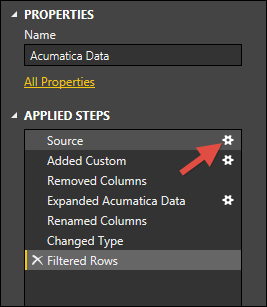
Click Edit Queries

Click the gear icon on the right on the Source line. This should open a Table.
Here is what the table looks like with some sample values:
InstanceName is where you put the friendly instance name that you want to display in the report.
CompanyName is where you put the friendly company name that you want to display in the report.
AcumaticaURL is where you put the URL to this Acumatica instance.
AcumaticaCompany is where you put the Acumatica Company Name. If there is only one Company in this Acumatica Instance, then you need to leave AcumaticaCompany empty like you can see in the last row of the screenshot above.

Click OK
Click Close & Apply which should cause Power BI to load data from all the Instances and Companies you just listed (this could take a while)

Click Refresh when you want updated data

If prompted, choose Basic, then enter your User name and Password, then click Connect

You should now be looking at this Power BI example with your own data. Cool huh?
Very informative post! Much appreciated! Suggestion, for Totals, use Max instead of Sum. Cheers!
Thanks for chiming in Joni. I tried MAX, but the underlying data actually has one record per day. So MAX just gives me the individual day that has the highest quantity. I want a total for the whole month. So I think I need SUM.
Your message reminded me to checkout your new pre-built dashboards for Acumatica. I went to https://dataself.com/ and, within a few quick clicks, I was into my trial environment and poking around. Very seamless! Since you are using Tableau for your dashboard elements, they “look” and “feel” much better than the ones in Power BI. I also like how you embedded an intro video into the first dashboard which explains that the Dashboard was not built in a vacuum, but was built by the CFO of one of your actual customers. Very cool.