
By using this website, you agree to our Terms of Use (click here)
Notifications
Clear all
Everything Else
19
Posts
5
Users
1
Reactions
7,481
Views

May 13, 2022 10:22 pm
I just did this and used Pulover's Macro Creator. Its a little old looking but I use it all the time to automate manual tasks. You just bring up the screen you need to work on, hit record, then playback the Pulover macro script it generated.
If you do decide to use it for this specific task do the following:
- Open the Customization Project and go to Access Rights
- Click on the + button to open the Add window and expand it to show as many fields a possible.
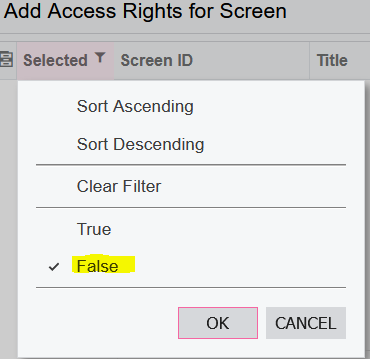
- Click on the Selected button and set to false as shown:
-
- Open Pulover, click on record macro and execute the following:
- Select every visible record
- Click on Selected
- Click on Ok - This will reset the screen
- Stop recording
- You can edit your macro pause steps to make it faster, or select a higher playback speed if you want.
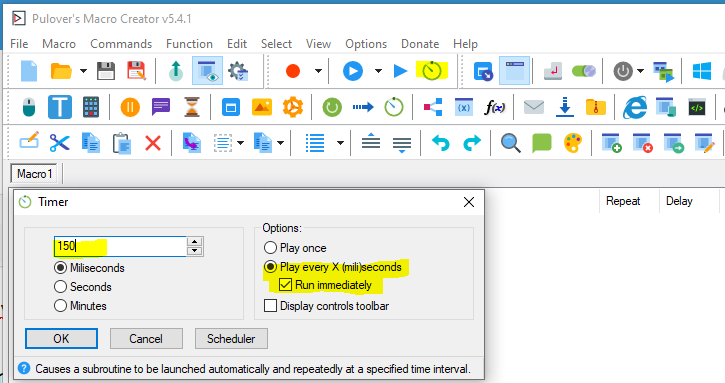
- To execute, set the timer
-
- When no more records appear to be selected, click on Pulover to stop the macro
- Click Ok on the add panel to save the selected records.
- Repeat add records to make sure none were missed.

Page 2 / 2
Prev
Online Members
