It’s common in an ERP system to have a something called a one-to-many relationship.
You might have one Sales Order with many Shipments.
Or maybe one Shipment with many Tracking Numbers.
Or maybe one Purchase Order getting received into multiple Warehouses.
Sometimes the “many” in a one-to-many relationship can be a big number. Take, for example, one Sales Order with many Lines. There might be 30 lines on the Sales Order.
But, other times, the “many” in a one-to-many relationship can be a small number. Take, for example, one Sales Order with many Shipments when, for a particular business, it’s most common to have only one or two Shipments on a Sales Order.
Sticking with the one Sales Order with many Shipments example, some companies might “never” have more than one Shipment on a Sales Order.
If you start with a Generic Inquiry in Acumatica of Sales Orders, it might be tempting to simply add a column for Shipment Number, especially if someone convinces you that there will “never” be more than one Shipment for a Sales Order.
Why is this a bad idea? Because “never” is never true. In my experience, if it can happen, it will happen at some point, unless you do a customization to prevent it.
It’s best to build reports to accommodate scenarios that might happen, even if they should “never” happen.
If you add a Shipment Number as a column to a Generic Inquiry of Sales Orders, then if there are ever multiple Shipments on a Sales Order, the Sales Order will appear multiple times, as separate rows.
Let’s say you have 5 Sales Orders in your Generic Inquiry, each with one Shipment:
Sales Order 1 ($100), Shipment 1
Sales Order 2 ($200), Shipment 2
Sales Order 3 ($300), Shipment 3
Sales Order 4 ($400), Shipment 4
Sales Order 5 ($500), Shipment 5
It would be a fairly common thing to calculate a total all of the Sales Orders in the Generic Inquiry. The total would be $100+$200+$300+$400+$500 = $1,500
Now, let’s say there is a second shipment on Sales Order 5. The Generic Inquiry would look like this:
Sales Order 1 ($100), Shipment 1
Sales Order 2 ($200), Shipment 2
Sales Order 3 ($300), Shipment 3
Sales Order 4 ($400), Shipment 4
Sales Order 5 ($500), Shipment 5
Sales Order 5 ($500), Shipment 6
It’s still the same list of Sales Orders with the same total, but now the total of all the Sales Orders in the Generic Inquiry is $100+$200+$300+$400+$500+$500 = $2,000
At best this is misleading. At worst it could catastrophically impact your business decision-making. You might decide to layoff workers due to an overly pessimistic outlook. You might encounter cash flow problems due to an overly optimistic outlook.
The point is, don’t let one-to-many relationships sneak up on you. They can be very dangerous when you don’t realize they are there.
How should we properly handle the one Sales Order with many Shipments situation above?
First, if we are dealing with a printed report in Report Designer, we could add a Subreport that lists the Shipment Numbers. That way the list could expand to include however many Shipment Numbers exist.
Second, if we are dealing with a Generic Inquiry, we could add a Side Panel that shows the list of Shipment Numbers as you click through each line in the main Generic Inquiry.
But, what if I want a Generic Inquiry that simply lists the Shipment Numbers as a column of comma-separated values?
In order to do this, you could build a SQL View, connect it to a Data Access Class (DAC), and then use your new DAC in your Generic Inquiry.
Let’s do it!
1. Build a SQL View
Here’s the SQL View that I came up with for the one Sales Order to many Shipments example.
This SQL View generates a comma-separated list of Shipment Numbers for each Sales Order and puts that list of Shipment Numbers nicely and neatly in individual cells:
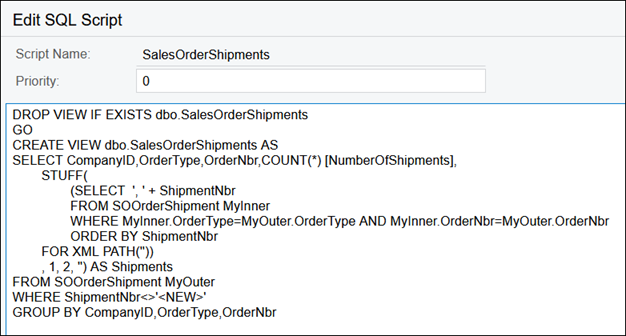
DROP VIEW IF EXISTS dbo.SalesOrderShipments
GO
CREATE VIEW dbo.SalesOrderShipments AS
SELECT CompanyID,OrderType,OrderNbr,COUNT(*) [NumberOfShipments],
	STUFF(
		(SELECT  ', ' + ShipmentNbr
		FROM SOOrderShipment MyInner
		WHERE MyInner.OrderType=MyOuter.OrderType AND MyInner.OrderNbr=MyOuter.OrderNbr
		ORDER BY ShipmentNbr
        FOR XML PATH(''))
	, 1, 2, '') AS Shipments
FROM SOOrderShipment MyOuter
WHERE ShipmentNbr<>'<NEW>'
GROUP BY CompanyID,OrderType,OrderNbr
2. Connect SQL View to Data Access Class (DAC)
It’s important to note that you can do this step in any Acumatica environment (SaaS, Hosted, On-Prem, Local) because we’re going to deploy the SQL View using an Acumatica Customization Project.
I like creating SQL Views on my local Acumatica Instance, then packaging them up in an Acumatica Customization Project to be deployed to any Acumatica environment.
Go to the Customization Projects (SM204505) screen and create a new Customization Project. I’m calling my Customization Project SQLViews:
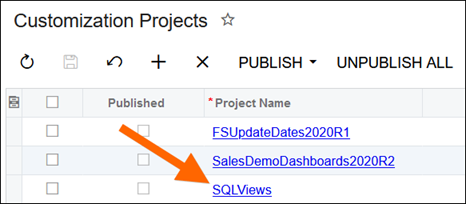
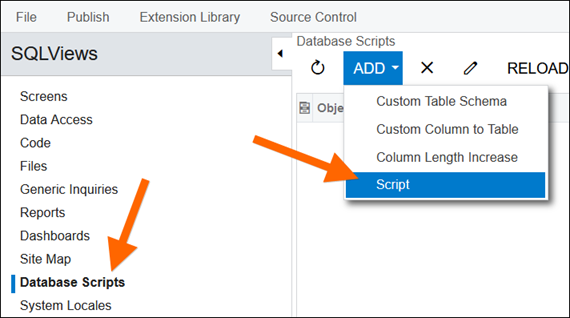
Click on the Project Name to open the Customization Project, then click Database Scripts -> ADD -> Script:
This is where you paste the SQL Script for the SQL View:
Before we proceed, we need to publish the Customization Project to create the SQL View. Without the SQL View, we can’t proceed to the next step.
Be careful when you do this. Publishing a Customization Project is not an insignificant task. It should be done when everyone is off the system. Also consider the other Customization Projects that might exist since all Customization Projects get published together.
You can publish with Publish -> Publish Current Project (Ctrl+Space) in the screen:
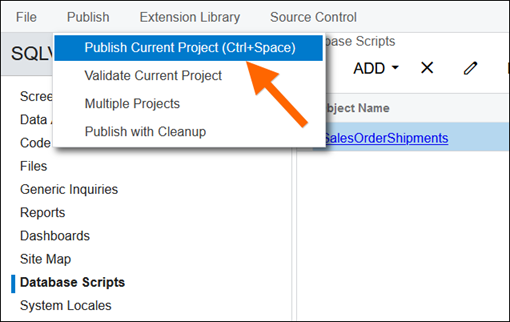
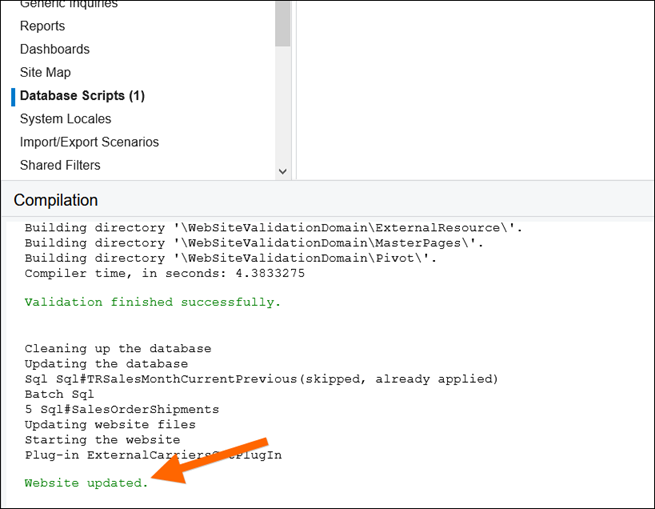
You know it’s done publishing when you see “Website updated.” on the bottom of the screen:
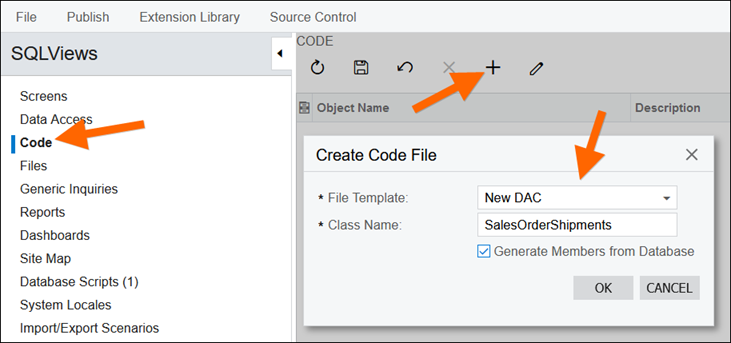
Now we can add the next piece to our Customization Project by clicking the Code section, then the + button, setting File Template to New DAC, and setting Class Name to SalesOrderShipments, the name of the SQL View. Also check the Generate Members from Database checkbox:
Acumatica attempts to generate the appropriate code.
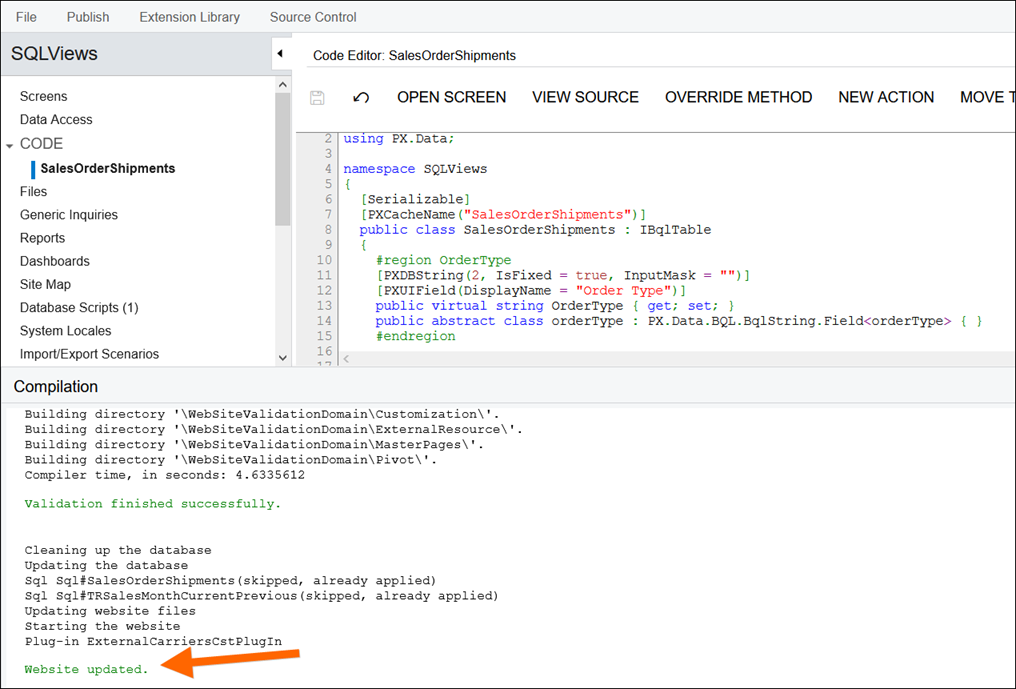
Here is what the generated code looks like for our example:
using System;
using PX.Data;

namespace SQLViews
{
  [Serializable]
  [PXCacheName("SalesOrderShipments")]
  public class SalesOrderShipments : IBqlTable
  {
    #region OrderType
    [PXDBString(2, IsFixed = true, InputMask = "")]
    [PXUIField(DisplayName = "Order Type")]
    public virtual string OrderType { get; set; }
    public abstract class orderType : PX.Data.BQL.BqlString.Field<orderType> { }
    #endregion

    #region OrderNbr
    [PXDBString(15, IsUnicode = true, InputMask = "")]
    [PXUIField(DisplayName = "Order Nbr")]
    public virtual string OrderNbr { get; set; }
    public abstract class orderNbr : PX.Data.BQL.BqlString.Field<orderNbr> { }
    #endregion

    #region NumberOfShipments
    [PXDBInt()]
    [PXUIField(DisplayName = "Number Of Shipments")]
    public virtual int? NumberOfShipments { get; set; }
    public abstract class numberOfShipments : PX.Data.BQL.BqlInt.Field<numberOfShipments> { }
    #endregion

    #region Shipments
    [PXDBString(IsUnicode = true, InputMask = "")]
    [PXUIField(DisplayName = "Shipments")]
    public virtual string Shipments { get; set; }
    public abstract class shipments : PX.Data.BQL.BqlString.Field<shipments> { }
    #endregion
  }
}
Sometimes I like to tweak the names in the code a little, but for this example I’ll leave the code alone.
Note that the field names on the lines that start with “public virtual string” can start with an uppercase letter, but the field names on the lines that start with “public abstract class” have to start with a lowercase letter. Why? I’m not sure. It’s some geeky C# reason (or maybe it should be called c# 😊).
Also note that the DisplayName values can be different than the underlying field names. That’s the reason why, when you drop a field into the RESULTS GRID tab on a Generic Inquiry, it often has a different name when you run the Generic Inquiry. Remember the spaces in our DisplayName values and note how they appear in the Generic Inquiry results later.
Now we can publish the Customization Project again with Publish -> Publish Current Project (Ctrl+Space). Same as before, we know that’s it’s done publishing when we see “Website updated.” on the bottom of the screen:
We can close the tab that we’ve been in and come back to the Customization Projects (SM204505) screen.
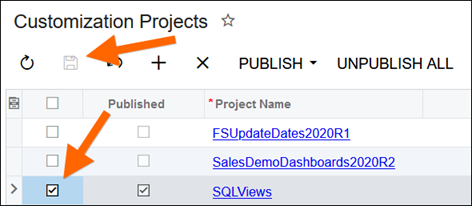
Here we can see that the Published column is now checked because our Customization Project has been published.
It’s a good idea to check the box in the first column and then Save. This way our Customization Project will get included in future bulk publishing of Customization Projects. If this box is unchecked when you bulk publish, our Customization Project would get unpublished:
Now we can go to the regular Sales Orders (SO3010PL) Generic Inquiry and add our Shipment columns.
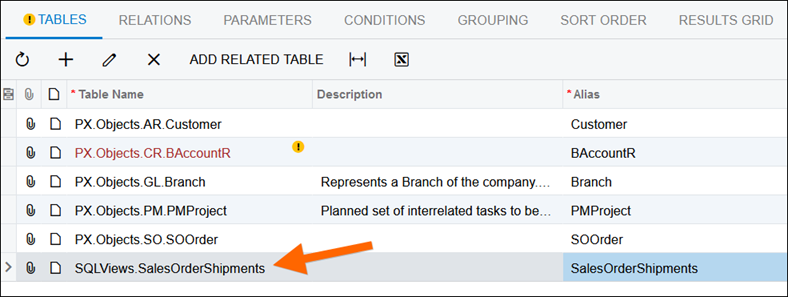
First, we need to add our newly created SQLViews.SalesOrderShipments Data Access Class (DAC) to the TABLES tab:
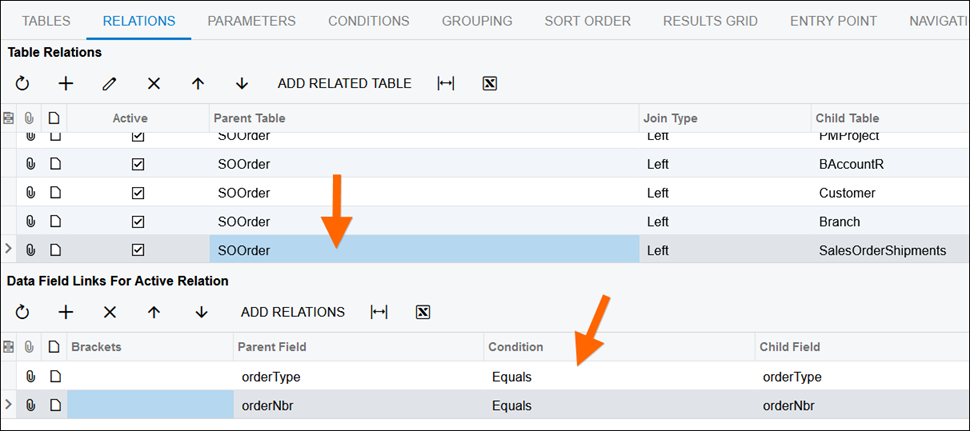
Next, we need to add the join information to the RELATIONS tab:
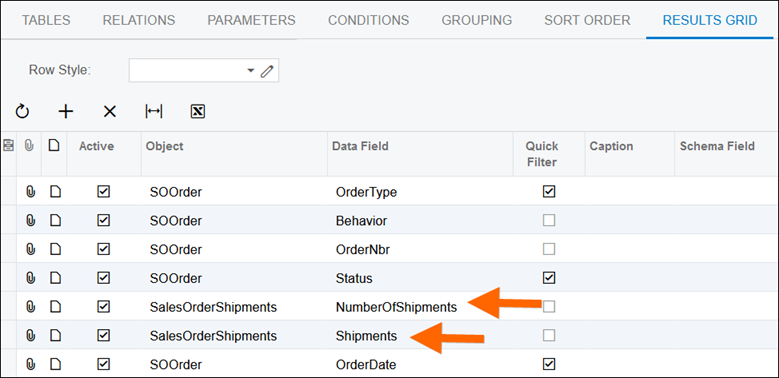
Finally, we can add the two new columns that we care about (SalesOrderShipments.NumberOfShipments and SalesOrderShipments.Shipments) to the RESULTS GRID tab.
Note that I dragged these fields near the top so we won’t have to scroll to see them after running the Generic Inquiry:
Here are our two new beautiful columns in action.
Note that I sorted descending on Number Of Shipments so we could make sure to see Sales Orders that have multiple Shipments:
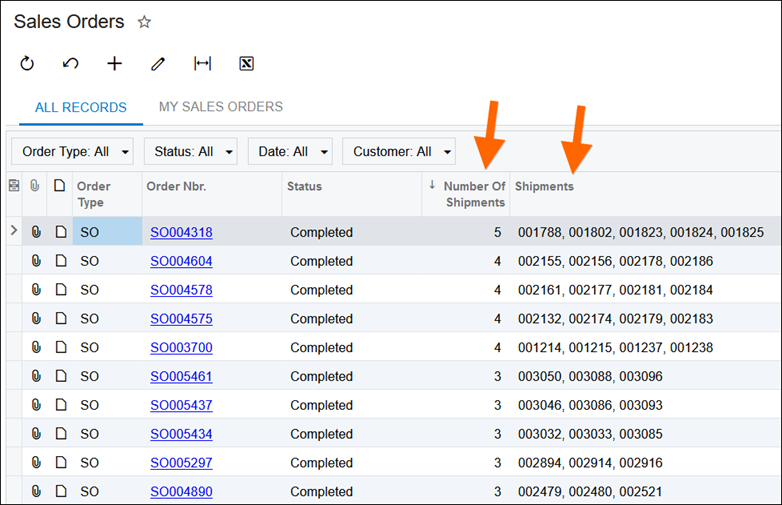
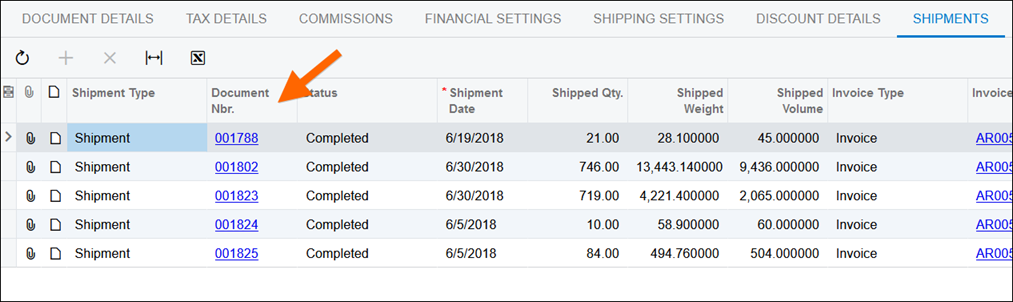
Let’s check our work and open the first Sales Order on the list, SO004318, in the Sales Orders (SO301000) screen, and check the SHIPMENTS tab to ensure that the Shipments listed in the Shipments column are indeed the Shipments made against this Sales Order.
As you can see, a perfect match!
Conclusion
This is a cool technique to use any time you have a one-to-many relationship.
You can create a Data Access Class (DAC) to pickup a comma-separated values to display in a single cell what would otherwise get displayed as multiple rows without this technique.